9 562 marques
2 694 000 modes d'emploi


Téléchargez vos notices, c'est GRATUIT ! Diplodocs vous permet de télécharger plusieurs types de documents pour mieux utiliser votre Imprimante SAGEM PHOTO EASY 155 : mode d'emploi, notice d'utilisation, manuel d'instruction.
Chercher une marque
Recherche avancée

Besoin d'aide pour votre produit ?
Consulter les avis sur SAGEM PHOTO EASY 155

Mode d'emploi SAGEM PHOTO EASY 155

Diplodocs permet de télécharger le mode d'emploi SAGEM PHOTO EASY 155 Imprimante.

Télécharger le mode d'emploi intégral (8719 Ko)


Vous pouvez télécharger les notices suivantes connexes à ce produit :
SAGEM PHOTO EASY 155


Aperçu des 3 premières pages de la notice

Vous avez désactivé JavaScript ou bien vous avez une ancienne version d'Adobe Flash Player.
Télécharger la dernière version de Flash Player.
Extrait du mode d'emploi : notice SAGEM PHOTO EASY 155

Les instructions détaillées pour l'utilisation figurent dans le Guide de l'utilisateur.

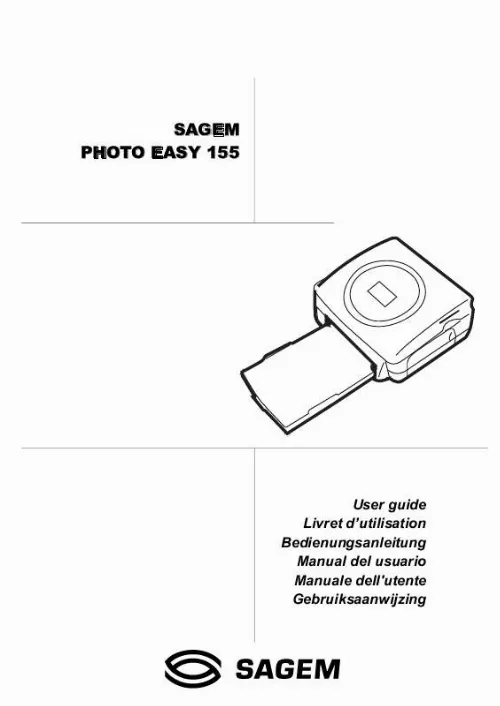
SAGEM PHOTO EASY 155 User guide Livret d'utilisation Bedienungsanleitung Manual del usuario Manuale dell'utente Gebruiksaanwijzing S 1 2 3 WELCOME DISCOVER YOUR PHOTO EASY 155 PRINTER PREPARE YOUR PHOTO EASY 155 PRINTER Connect the mains supply First ribbon installation To change the ribbon Loading paper Insert a memory card 1 2 3 3 4 5 6 7 7 9 10 10 11 13 14 16 17 18 19 21 23 24 24 25 26 27 29 30 4 5 PRINTING USER FROM A MEMORY CARD Print your photographs Rapid printing Example of rapid printing from a memory card Create a contact sheet (index) Prepare a series of photographs for printing (shopping trolley mode) Print from a camera (PictBrigde mode) Print in DPOF (Digital Print Order Format) mode Printing from a GSM mobile phone camera Print starting from a bluetooth peripheral (optional) Print from a PC (Personal Computer) INTERFACE 7 MAINTENANCE Cleaning the print head Paper jam Problems Error messages Technical data -I- NEDERLANDS ITALIANO 8 GARANTEE ESPAÑOL 6 REPLACEMENT OF CONSUMABLES DEUTSCH FRANÇAIS ENGLISH - II - 1 WELCOME You have just acquired a SAGEM PHOTO EASY 155 printer, and we thank you for choosing our product. With this high quality printer you can get the most out of your digital photos. In a few simple steps you can produce photo prints identical to those from a professional developer, for your personal use or to share with friends and family. The easy-to-follow steps in this user guide will walk you through: 1. Switching on your PHOTO EASY 155 printer 2. Printing photographs stored on a memory card 3. Printing photographs transferred from a camera in a GSM mobile phone 4. Installing the image processing software and printer driver on a PC 5. Maintenance and troubleshooting of your PHOTO EASY 155 printer The CD-ROM included with your kit contains an additional guide with instructions for using the image processing software and printer driver on your PC. Safety instructions and recommendations · Do not install your PHOTO EASY 155 printer in a humid room (bathroom, laundry, kitchen, etc.), or within 1.50 m of a tap or water source, or outside. The printer should be operated within an ambient temperature range of 10 °C to 35 °C. · Do not install your printer in a location where there is a noticeable amount of dust floating in the air. Such dust can degrade the print quality of your photos. · Only the power supply provided with the printer should be used. Connect this to the mains in accordance with the installation instructions in this user guide and the information on the identification label affixed to the power supply (voltage, current, mains frequency). As a precaution, in case of danger, the mains adapters act as a disconnecting mechanism for the 230V power supply. They should be placed near the device and should be easily accessible. · Never open the cover of the film cartridge compartment during printing. This could break the film and cause printer malfunction. · Only use SAGEM consumables, if not you are likely to damage the equipment and invalidate the guarantee. To obtain the references of the consumables (Refer to paragraph Replacement of consumables, page -23). · The CE marking certifies that the product meets the main requirements of the European Parliament and Council directive 1999/5/CE on telecommunications terminal equipment, regarding safety and health of users, and regarding electromagnetic interference. The declaration of compliance can be consulted on the site www.sagem.com category "support", or can be requested at the following address: E - Customer relations department -1- NEDERLANDS 4 rue du petit albi - 95800 Cergy Saint-Christophe - FRANCE ITALIANO ESPAÑOL DEUTSCH FRANÇAIS ENGLISH 2 DISCOVER YOUR PHOTO EASY 155 PRINTER Place the box in front of you, open the packaging and check that you have received the items listed below: 1 2 3 4 5 6 7 8 9 PHOTO EASY 155 printer User manual CD-ROM with its applications Film cartridge * Photo paper (2 packs of 20 sheets)* USB cable Paper tray Power supply unit Mains cable 10 xD card adapter 10 PH O EA OT O M GE SA 155 SY 9 2 Bed e r guid n Use satio utili g et d itun Livr anle ario ngs usu ienu del nte ual 'ute dell Man ing uale wijz Man saan ruik Geb S 8 3 1 6 7 4 * * depending on model 5 * -2- 3 PREPARE YOUR PHOTO EASY 155 PRINTER CONNECT THE MAINS SUPPLY Remark: Please refer to the safety instructions at the beginning of this user guide before making any connections. Insert one end of the mains lead into the corresponding socket of the power supply. Connect the power supply to the printer as shown in the illustration below. A B Plug the other end of the power supply mains lead into a wall socket. Your printer features a SCSI Mass storage master USB connector (A) and a slave USB connector (B). The latter is used for connection with a master terminal (PC, etc.). Remarque : To obtain the list of devices compatible with this USB port (A), visit the site www.sagem.com. -3- NEDERLANDS ITALIANO Switch on the printer by pressing the " I " on the on/off switch located at the back of the printer. The green light comes on and three lines are displayed on the screen. ESPAÑOL DEUTSCH FRANÇAIS When installing your printer near a wall or some other object, keep an open space of at least 4 inches at the back of the printer, to make sure the movement of the sheet of paper being printed is not obstructed. ENGLISH FIRST RIBBON INSTALLATION Remarque : Use DSR400 or DSR400T consumables only. These are specially designed to provide you with optimum print rendering. Switch on the printer. Wait 10 seconds for the printhead to lift, then: 1. Open the external flap located on the right-hand side of the printer. 2. Remove the protective foam. 3. Take the new ribbon out of its packaging and make sure that the film is stretched after removing the card (A). 4. Install the ribbon in the position shown in the illustration below. 5. Lift the locking lever and push in the film cartridge until it touches the back of the compartment the locking lever must be locked after insertion. 6. Close the external flap. A 6 Warning - Never touch the film cartridge with your fingers. Make sure the cartridge is completely inserted into the printer. Check that the green locking lever is correctly lowered. Remarque : In the event of any difficulty, check that there are no foreign objects in the film cartridge compartment. -4- TO CHANGE THE RIBBON Remarque : Use DSR400 or DSR400T consumables only. These are specially designed to provide you with optimum print rendering. For this purpose, the printer must read the chip card delivered with each consumable kit after any new kit installation. Remark: If this last operation is not carried out, you will not be able to use the printer. A 6 7 8 Warning - Never touch the film cartridge with your fingers. Make sure the cartridge is completely inserted into the printer. Check that the green locking lever is correctly lowered. In the event of any difficulty, check that there are no foreign objects in the film cartridge compartment. -5- Remark: NEDERLANDS ITALIANO ESPAÑOL DEUTSCH 1. Take the SIM card delivered with the ribbon and the photo paper. Insert it in the drive located on the front panel of the printer. The SIM card is identified and read by the printer. At the end of the procedure, "40 or 120" is displayed on the screen. 2. Remove the SIM card. 3. Take the new ribbon out of its packaging and make sure that the film is stretched after removing the card (A). 4. Open the external flap located on the right-hand side of the printer. 5. Lift the locking lever and remove the used ink ribbon. 6. Install the ribbon in the position shown in the illustration below. 7. Lift the locking lever and push in the film cartridge until it touches the back of the compartment the locking lever must be locked after insertion. 8. Close the external flap. FRANÇAIS Switch on the printer. Wait 10 seconds for the printhead to lift, then: ENGLISH LOADING PAPER Protection sheet 1 - Pull the paper tray out of the printer. 2 - Open a pack of paper with the protection sheet on the top, insert it in the paper tray, making sure the rectangle reserved for postage stamps is on the outside of the tray, that is, towards you. 3 - Remove the protection sheet. 4 - Line up the tray with its compartment and push it in slowly until the locking system clicks. Warning - handle paper sheets by their pre-cut edges, never allow your fingers to come into contact with the shiny surface before printing. Your SAGEM PHOTO EASY 155 printer is now ready to print your digital photographs. Warning - protect consumable items against prolonged exposure to light, humidly, heat and dust. Respect the operation conditions set out (Refer to paragraph Technical data, page -29).Only use SAGEM brand consumable items designed for this printer. Make sure that a previously printed photograph has not been slipped inadvertently into a packet of blank pages; this could damage the ribbon of your printer. Warning - Make sure that a previously printed photograph has not been slipped inadvertently into a packet of blank pages; this could damage the ribbon of your printer. -6- 4 PRINTING FROM A MEMORY CARD Your SAGEM PHOTO EASY 155 printer is designed to be used with or without a computer. This chapter describes printer operation without a computer. Refer to the technical data table at the end of thi user manual to check whether your memory card is compatible with the printer. In the event of incompatibility, use a computer and the image processing software supplied on the CD-ROM. Warning - Small sized images, less than 80,000 pixels, cannot be printed from memory cards (for example: an image size 320 x 240, equivalent to 76,800 pixels, will not be included in the index). On the other hand, these photographs may be printed from a PC or by means of a wireless IR link (or Bluetooth optional equipment). INSERT A MEMORY CARD Insert your memory card into the corresponding slot, as shown in the illustrations below. Into the case of a xD card, introduce initially the adapter provided into the left slit then insert the card in the adapter. Warning - SmartMedia, CONTACTS FACING UPWARDS. Warning - The memory cards do not enter fully in the reader slot. DO NOT USE FORCE UNDER ANY CIRCUMSTANCES. If a card does not enter properly, remove it and check that you are introducing it in the correct slot and with the right orientation. Slot compatible with Compact Flash format Slot compatible with Smart Media (SM), Memory Stick (MS), Standard Digital (SD) Multi Media Card (MMC) formats or XD card with its adapter -7- NEDERLANDS ITALIANO ESPAÑOL DEUTSCH FRANÇAIS ENGLISH Warning - Printing of picture by ascending order relatively to the date of the pictures on the memory board will be achieved if parameters "dates and hour" have been set on your camera before the catch of pictures. Otherwise pictures will be read and printed in a random order. Card Slot Location Smart Media (SM) Left Memory Stick (MS) Left Standard Digital (SD) Left Multi Media Card (MMC) Left xD card with its adapter Left CompactFlash Right -8- 5 USER INTERFACE 1 2 3 4 5 6 7 A B C D E F G H I Add a selection to the shopping trolley1 Select the number of copies per photograph (between 1 and 20) Go to the previous photograph number (..., 3, 2, 1) Start printing Go to the next photograph number (1, 2, 3...) Select the print format Cancel Number of copies to be printed Number of the active photo Number of sheets that will be printed Print format Shopping trolley mode Active photograph in the shopping trolley Paper error Ribbon error Consumable card icon (SIM) A F B D C H G E I 1 7 s C 2 Photo Easy 150 - Personal Photo Printe 6 r 3 5 4 1. Shopping trolley: depending on the choice of photographs to be printed. -9- NEDERLANDS ITALIANO ESPAÑOL DEUTSCH FRANÇAIS ENGLISH PRINT YOUR PHOTOGRAPHS Your printer is switched on, and you have inserted a memory card, or you have transferred photographs from a GSM mobile phone camera using the IR (infrared) link (or Bluetooth optional equipment). The green light blinks while data are being transferred to the printer. After a few seconds, the number of photographs found on the memory card or in the digital camera, or transferred from the GSM mobile phone camera, is displayed on the screen. The light stops blinking. Your photos are printed in four stages. The printer first prints the three colours: yellow, magenta and cyan in that order, then deposits a protective film on the sheet of papier, and finally ejects the photo. The colour of the light shows the printer status: Steady green: Blinking green: Steady red: Remark: printer ready, on standby, data being tranferred, incident: refer to the end of this user guide. To enable you to handle your photographs under the right conditions, the size of the sheets ...

  Know our Partners   Foire aux questions   Contactez l'équipe Diplodocs   Dernières recherches
Derniers ajouts
  Sitemap
Les marques commençant par la lettre A B C D E F G H I J K L M N O P Q R S T U V W X Y Z #
Copyright © 2005 - 2008 - Diplodocs - Tous droits réservés.
Les noms de marques cités appartiennent à leurs propriétaires respectifs.