9 562 marques
2 694 000 modes d'emploi


Téléchargez vos notices, c'est GRATUIT ! Diplodocs vous permet de télécharger plusieurs types de documents pour mieux utiliser votre Appareil photo numérique OLYMPUS C-350 ZOOM : mode d'emploi, notice d'utilisation, manuel d'instruction.
Chercher une marque
Recherche avancée

Besoin d'aide pour votre produit ?
Consulter les avis sur OLYMPUS C-350 ZOOM

Mode d'emploi OLYMPUS C-350 ZOOM

Diplodocs permet de télécharger le mode d'emploi OLYMPUS C-350 ZOOM Appareil photo numérique.

Télécharger le mode d'emploi intégral (5583 Ko)


Vous pouvez télécharger les notices suivantes connexes à ce produit :
OLYMPUS C-350 ZOOM
OLYMPUS C-350 ZOOM QUICK START GUIDE

Le forum OLYMPUS C-350 ZOOM

Aperçu des 3 premières pages de la notice

Vous avez désactivé JavaScript ou bien vous avez une ancienne version d'Adobe Flash Player.
Télécharger la dernière version de Flash Player.
Extrait du mode d'emploi : notice OLYMPUS C-350 ZOOM

Les instructions détaillées pour l'utilisation figurent dans le Guide de l'utilisateur.

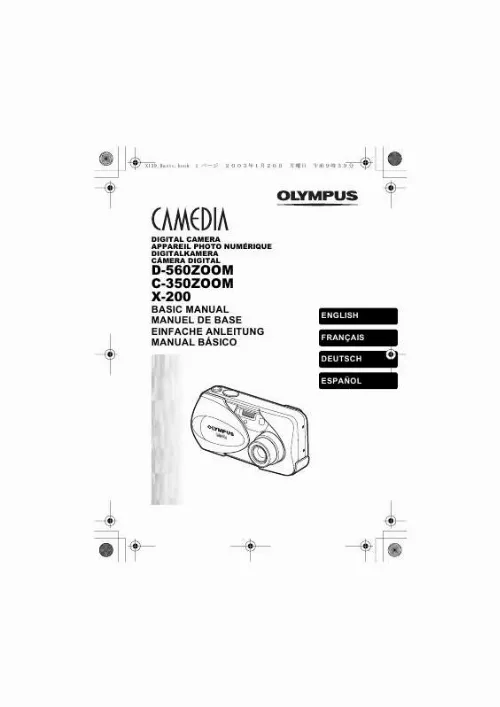
X139_Basic.book 1 DIGITAL CAMERA APPAREIL PHOTO NUMÉRIQUE DIGITALKAMERA CÁMERA DIGITAL D-560ZOOM C-350ZOOM X-200 BASIC MANUAL MANUEL DE BASE EINFACHE ANLEITUNG MANUAL BÁSICO ENGLISH FRANÇAIS DEUTSCH ESPAÑOL X139_Basic.book 2 CONTENTS/TABLE DES MATIÉRES/INHALT/CONTENIDO ENGLISH . . . . . . . . . . . . . . . . . . . . . . . . . . . . . . . . . . . . . . 2 FRANÇAIS. . . . . . . . . . . . . . . . . . . . . . . . . . . . . . . . . . . . 42 DEUTSCH . . . . . . . . . . . . . . . . . . . . . . . . . . . . . . . . . . . . 82 ESPAÑOL . . . . . . . . . . . . . . . . . . . . . . . . . . . . . . . . . . . 122 CONTENTS GETTING STARTED . . . . . . . . . . . . . . . . . . . . . . . . . . . . 4 MENU FUNCTIONS . . . . . . . . . . . . . . . . . . . . . . . . . . . . 16 SHOOTING BASICS . . . . . . . . . . . . . . . . . . . . . . . . . . . 22 En ADVANCED SHOOTING . . . . . . . . . . . . . . . . . . . . . . . . 29 PLAYBACK . . . . . . . . . . . . . . . . . . . . . . . . . . . . . . . . . . 30 PRINT SETTINGS . . . . . . . . . . . . . . . . . . . . . . . . . . . . . 36 DOWNLOADING PICTURES TO A COMPUTER . . . . . 37 ERROR CODES . . . . . . . . . . . . . . . . . . . . . . . . . . . . . . . 39 SPECIFICATIONS . . . . . . . . . . . . . . . . . . . . . . . . . . . . . 40 These instructions are only for quick reference. For more details on the functions described here, refer to the "Reference Manual" on CD-ROM. For connection to the PC or installation of provided software, refer to the Software Installation Guide included in the CD-ROM package. 2 En X139_Basic.book 3 Before using your camera, read this manual carefully to ensure correct use. We recommend that you take test shots to get accustomed to your camera before taking important photographs. These instructions are only a basic manual. For more details on the functions described here, refer to the Reference Manual on the CD-ROM. For customers in North and South America For customers in USA Declaration of Conformity Model Number : D-560ZOOM/C-350ZOOM/X-200 Trade Name : OLYMPUS Responsible Party : Olympus America Inc. Address : 2 Corporate Center Drive, Melville, New York 11747-3157 U.S.A. Telephone Number : 1-631-844-5000 Tested To Comply With FCC Standards FOR HOME OR OFFICE USE This device complies with Part 15 of the FCC rules. Operation is subject to the following two conditions: (1) This device may not cause harmful interference. (2) This device must accept any interference received, including interference that may cause undesired operation. En For customers in Canada This Class B digital apparatus meets all requirements of the Canadian Interference-Causing Equipment Regulations. For customers in Europe "CE" mark indicates that this product complies with the European requirements for safety, health, environment and customer protection. "CE" mark cameras are intended for sales in Europe. Trademarks IBM is a registered trademark of International Business Machines Corporation. Microsoft and Windows are registered trademarks of Microsoft Corporation. Macintosh is a trademark of Apple Computer Inc. All other company and product names are registered trademarks and/or trademarks of their respective owners. · The standards for camera file systems referred to in this manual are the "Design Rule for Camera File System/DCF" standards stipulated by the Japan Electronics and Information Technology Industries Association (JEITA). · · · · En 3 X139_Basic.book 4 GETTING STARTED NAMES OF PARTS Shutter button Zoom lever (W/T· Flash ) Self-timer lamp En Lens barrier Turns the camera on and off in the shooting Lens Extends automatically mode. when you open the lens barrier. Connector cover DC-IN jack/ VIDEO OUT jack cover Strap eyelet USB connector VIDEO OUT jack Card cover DC-IN jack 4 En X139_Basic.book 5 Arrow pad Buttons on the arrow pad have their respective functions. They are also used as direction buttons. , , and indicate which button to be pressed. Macro button ( ) ) Flash mode button ( OK/Menu button ( Self-timer button ( ) ) Viewfinder Monitor Monitor button (QUICK VIEW ) Playback button ( ) Turns the camera on and off in the playback mode. Turns the monitor on and off in the shooting mode. En Arrow pad ( ) Battery compartment cover Tripod socket Viewfinder Orange lamp Green lamp AF target mark En 5 X139_Basic.book 6 MONITOR INDICATIONS Shooting mode 1 2 3 4 5 6 7 9 10 8 11 12 13 14 15 16 1 2 5 6 8 9 10 11 12 13 14 15 16 Still picture Items Movie Indications , , , , , , 1 Scene select/movie En 2 Battery check 3 Green lamp 4 Flash stand-by Camera movement warning/Flash charge 5 Macro mode 6 Flash mode 7 Sequential shooting 8 Self-timer 9 Record mode 10 Resolution 11 Metering 12 Exposure compensation 13 White balance 14 AF target mark 15 Memory gauge 16 Number of storable still pictures Seconds remaining [] , 15 36" , , (Lit) (Blinks) , SHQ, HQ, SQ1, SQ2 2048×1536, 1024×768, 640×480, etc. -2.0, -1.5, -1.0, -0.5, +0.5, +1.0, +1.5, +2.0 , , , , , 6 En X139_Basic.book 7 Playback mode Screens when the information display is set to ON are shown below. 1 2 10 3 4 5 7 8 9 3 4 5 6 7 8 9 2 Still picture Movie Items 1 Print reservation, Number of prints 2 Battery check 3 Protect 4 Record mode 5 Resolution 6 Exposure compensation 7 White balance 8 Date and time Indications × 10 , En SHQ, HQ, SQ1, SQ2 2048 × 1536, 1024 × 768, 640 × 480, etc -2.0, -1.5, -1.0, -0.5, +0.5, +1.0, +1.5, +2.0 WB AUTO, '03.04.01 12:30 , , , 9 File number (still picture) FILE: 100-0016 Playing time/Total recording time (movie) 0"/15" 10 Movie En 7 X139_Basic.book 8 Memory gauge The memory gauge lights up when you take a picture or record a movie. While the gauge is lit, the camera is storing the picture or the movie on the card. The memory gauge indication changes as shown below depending on the shooting status. If the memory gauge is fully lit, wait a few seconds until it goes off to take the next shot. When taking still pictures Shoot Shoot Shoot Wait No more pictures can be taken (Fully lit). Wait until the gauge returns to the status on the left to take the next shot. Before shooting (Gauge is off) One picture taken (Lit) More than two taken (Lit) En When recording movies If you continue shooting Shoot Wait Before shooting (Gauge is off) During shooting (Lit) · Shooting is not possible until the lit area goes off completely. · Movie recording ends automatically when the memory gauge is full. Battery check If the remaining battery power is low, the battery check indication on the monitor changes as follows while the camera is turned on. No indication Lit (Green) (The indicator turns off after a while.) Remaining power level: high Blinks (Red) Green lamp and orange lamp on the right of the viewfinder blink. Remaining power level: exhausted. Replace with a new batteries. Remaining power level: low Prepare new batteries. 8 En X139_Basic.book 9 ATTACHING THE STRAP 1 2 Thread the short end of the strap through the strap eyelet. Thread the long end of the strap through the loop that has already gone through the eyelet. Pull the strap tight, making sure that it is securely fastened and does not come loose. Strap eyelet 3 LOADING THE BATTERIES 1 Make sure that: · The lens barrier is closed. · The monitor is off. · The lamp on the right of the viewfinder is off. En 2 Slide the battery compartment cover in the direction of . · The battery compartment cover is unlocked and opened in the direction of . · Use the ball of your finger to slide the cover. Do not use your fingernail as this could result in injury. Battery compartment cover En 9 X139_Basic.book 10 3 Insert the batteries, making sure that they are correctly oriented as shown in the illustration. When using AA (R6) batteries When using CR-V3 lithium battery pack Battery insertion direction mark En There is a mark showing the correct way to insert the AA batteries on the bottom of the camera. When using a lithium battery pack. Insert it in the direction as shown in the illustration. 4 Close the battery compartment cover, then press it down and slide it in the direction shown . · If the battery compartment cover seems hard to close, do not force it. With the battery compartment cover shut, press the mark firmly and push in the direction shown in the illustration. Important · CR-V3 lithium battery cannot be recharged. · Do not peel off the label from a CR-V3 lithium battery pack. · Manganese (zinc-carbon) batteries cannot be used. 10 En X139_Basic.book 11 INSERTING A CARD "Card" in this manual refers to the xD-Picture Card. The camera uses the card to record pictures. 1 Make sure that: · The monitor is off. · The lens barrier is closed. · The lamp on the right of the viewfinder is off. 2 3 Open the card cover. Face the card the correct way and insert it into the card slot as shown in the illustration. · Insert the card while keeping it straight. · The card stops with a click when it is inserted all the way. · Inserting the card the wrong way or at an angle could damage the contact area or cause the card to jam. · If the card is not inserted all the way, data may not be written to the card. Index area side of the card En Notch 4 Close the card cover securely. The position of the card inserted correctly Removing the card Make sure that: · The lens barrier is closed. · The monitor is off. · The lamp on the right of the viewfinder is off. · Push the card all the way in to unlock it, then let it return slowly. The card is ejected a short way and then stops. Hold the card straight and pull it out. Note Releasing your finger quickly after pushing the card all the way in may cause it to eject forcefully out of the slot. En 11 X139_Basic.book 12 TURNING THE POWER ON/OFF When shooting pictures (Shooting mode) Power on: Open the lens barrier fully. The camera turns on in the shooting mode. The lens extends. If the lens does not extend when the lens barrier is opened, there is a possibility that the barrier is not fully open. Open the lens barrier fully until you feel it clicks. En Power off: Close the lens barrier slightly until it almost touches the lens barrel. The lens barrier stops just before it touches the lens and the lens retracts. Wait until the lens is fully retracted before closing the lens barrier completely. The camera turns off. Note · Do not push the lens barrier forcefully against the lens as this may damage the lens or cause it to malfunction. 12 En X139_Basic.book 13 When playing back pictures (Playback mode) Power on: Press (Playback) with the lens barrier closed. The camera turns on in the playback mode. The monitor turns on and the last picture taken is displayed. Playback button ( ) Power off: Press . The monitor and the camera turn off. Playback button ( ) En En 13 X139_Basic.book 14 SELECTING A LANGUAGE 1 2 3 4 5 6 7 8 En Open the lens barrier fully. Press Press Press Press Press Press . on the arrow pad to select MODE MENU. to select the SETUP tab, and press to select , and press . . . · The top menu is displayed. to select a language, and press again to exit the menu. Close the lens barrier to turn the camera off. SETTING THE DATE AND TIME 1 2 3 4 5 6 Open the lens barrier fully. Press Press Press Press . on the arrow pad to select MODE MENU. to select the SETUP tab, and press to select , and press . . · The top menu is displayed. · The green frame moves to the selected item. Press to select one of the following date formats: Y-M-D (Year/Month/Day), M-D-Y (Month/Day/Year), D-M-Y (Day/Month/Year). Then press . · Move to the year setting. · The following steps show the procedure used when the date and time settings are set to Y-M-D. 14 En X139_Basic.book 15 7 Press to set the year, and press month setting. · To move back to the previous setting, press · The first two digits of the year are fixed. . to move to the 8 Repeat this procedure until the date and time are completely set. · The camera only displays the time in 24-hour time system ("2 p.m" would be "14:00"). 9 Press . · For a more accurate setting, press when the time signal hits 00 seconds. The clock starts when you press the button. 10 Close the lens barrier to turn the camera off. Note · The date and time settings will be canceled if the camera is left without batteries for approximately 30 minutes. En En 15 X139_Basic.book 16 MENU FUNCTIONS TYPE OF MENUS When you turn on the camera and press , the top menu is displayed on the monitor. The functions of this camera are set from the menus. This chapter explains how the menus work, using the shooting mode screens. Press . The top menu is displayed. OK button Arrow pad En ( ) Select a menu using the arrow pad. SHORTCUT MENUS · Take you directly to the setting screens. · Display operational buttons at the bottom of the screen. MODE MENU · ...

  Know our Partners   Foire aux questions   Contactez l'équipe Diplodocs   Dernières recherches
Derniers ajouts
  Sitemap
Les marques commençant par la lettre A B C D E F G H I J K L M N O P Q R S T U V W X Y Z #
Copyright © 2005 - 2008 - Diplodocs - Tous droits réservés.
Les noms de marques cités appartiennent à leurs propriétaires respectifs.