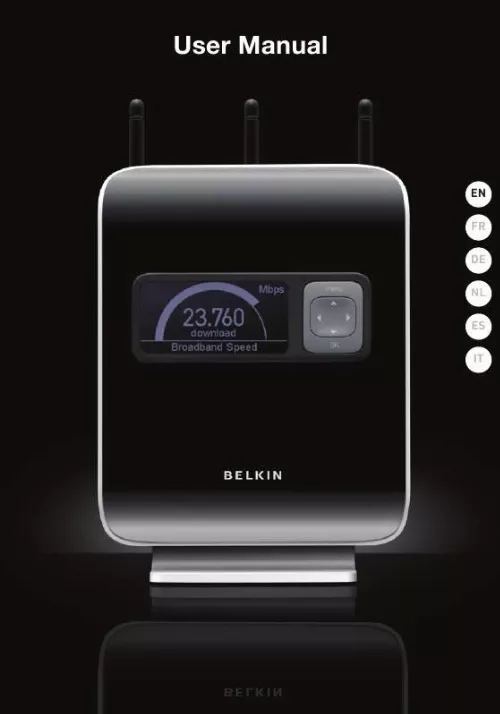
Les instructions détaillées pour l'utilisation figurent dans le Guide de l'utilisateur.
User Manual
EN
FR
DE
NL
ES
IT
Table of Contents
1. Introduction .......................................................................... 1 Advantages of a Wireless Network ........................................ 1 Placement of your N1 Vision .................................................. 2 2. Product Overview .................................................................. 6 Product Features ................................................................... 6 3. Knowing your N1 Vision......................................................... 9 Package Contents ................................................................. 9 System Requirements ............................................................ 9 Assistant Software System Requirements ............................. 9 Hardware Characteristics .................................................... 10 4. Connecting and Configuring your N1 Vision........................ 14 Step 1: Hardware Connections  Follow the Quick Installation Guide ..................................... 15 Step 2: Set Up the N1 Vision  Using the Plug-and-Play Router Setup ................................ 16 5. Interactive Display ............................................................... 18 Informational Screens .......................................................... 18 Menu Screen ....................................................................... 22 6. Troubleshooting Assistant CD ............................................. 24 7. Alternate Setup Method ...................................................... 30 8. Using the Web-Based Advanced User Interface ................ 46 Changing LAN Settings ....................................................... 46 Viewing the DHCP Client List Page ..................................... 48 Configuring the Wireless Network Settings ......................... 48 Setting WPA Security .......................................................... 57 Setting WEP Encryption ...................................................... 59 Using the Access Point Mode ............................................. 61 Setting MAC Address Control ............................................. 62 Configuring the Firewall ....................................................... 64 Using Dynamic DNS ............................................................ 68 Utilities ................................................................................. 69 Restarting the N1 Vision ...................................................... 70 Updating the Firmware ........................................................ 75 9. Manually Configuring Network Settings.............................. 83 10. Recommended Web Browser Settings ................................ 88 11. Troubleshooting .................................................................. 90 12. Information ....................................................................... 106
Introduction
Revolutionary N1 Wireless Technology with MIMO (N1 MIMO) ÂYour Belkin Vision wireless router uses a new smart-antenna technology called Multiple Input Multiple Output (MIMO). N1 MIMO complies with the IEEE draft 802.11n specification. It increases speed, range, reliability, and spectral efficiency for wireless networking systems. The element that makes Belkin's N1 MIMO technology different from a conventional radio is the use of multiple antennas and two simultaneous data streams to deliver wireless transfers around your home or office. A conventional radio uses one antenna to transmit a data stream. Belkin's N1 MIMO technology, on the other hand, uses three antennas. This design helps combat distortion and interference. Belkin's N1 MIMO is multidimensional. It builds on one-dimensional smart-antenna technology by simultaneously transmitting two data streams through the same channel, which increases wireless capacity. Another element that enhances Belkin's N1 MIMO technology is the use of aggregation as specified in the draft 802.11n standard. By shortening the space between packets and combining multiple smaller packets into one larger packet, Belkin's N1 MIMO technology can transmit more data through available bandwidth. Think of conventional radio transmission as a two-lane highway. The speed limit governs the maximum allowable flow of traffic through that lane. Compared with conventional radios, one-dimensional smart-antenna systems help move traffic through that lane faster and more reliably--analogous to a four-lane road on which traffic consistently moves at a rate closer to the speed limit. Belkin's N1 MIMO technology helps traffic move at the speed limit and opens more lanes--to become the superhighway in this example. The rate of traffic flow is multiplied by the number of lanes that are opened.
Placement of your N1 Vision
Important Factors for Placement and Setup Your wireless connection will be stronger the closer your computer is to your N1 Vision. Typical indoor operating range for wireless devices is between 100 and 200 feet. In the same way, your wireless connection and performance will degrade somewhat as the distance between your N1 Vision and connected devices increases. This may or may not be noticeable to you. As you move further from your N1 Vision, connection speed may decrease. Factors that can weaken signals simply by getting in the way of your network's radio waves are metal appliances or obstructions, and walls.
2
Introduction
section
If you have concerns about your network's performance that might be related to range or obstruction factors, try moving the computer to a position between five and 10 feet from the N1 Vision in order to see if distance is the problem. If difficulties persist even at close range, please contact Belkin Technical Support. Note: While some of the items listed below can affect network performance, they will not prohibit your wireless network from functioning; if you are concerned that your network is not operating at its maximum effectiveness, this checklist may help. 1. N1 Vision Place your N1 Vision, the central connection point of your network, as close as possible to the center of your wireless network devices. To achieve the best wireless network coverage for your "wireless clients" (i.e., computers enabled by Belkin Wireless Notebook Network Cards, Wireless Desktop Network Cards, and Wireless USB Adapters): · Ensure that your N1 Vision's networking antennas are parallel to each other, and are positioned vertically (toward the ceiling). If your N1 Vision itself is positioned vertically, point the antennas as much as possible in an upward direction. In multistory homes, place the N1 Vision on a floor that is as close to the center of the home as possible. This may mean placing the N1 Vision on an upper floor. Try not to place the N1 Vision near a cordless 2.4GHz phone.
1 2 3 4 5 6 7 8 9 10
·
·
2. Avoid Obstacles and Interference Avoid placing your N1 Vision near devices that may emit radio "noise," such as microwave ovens. Dense objects that can inhibit wireless communication include: · · · · · Refrigerators Washers and/or dryers Metal cabinets Large aquariums Metallic-based, UV-tinted windows
If your wireless signal seems weak in some spots, make sure that objects such as these are not blocking the signal's path (between your computers and N1 Vision).
3
Introduction
section
Thank you for purchasing the Belkin N1 Vision wireless router (the N1 Vision). Following are two short sections--the first discusses the benefits of home networking, and the other outlines best practices that maximize your wireless home network range and performance. Please be sure to read through this User Manual completely, and pay special attention to the section entitled "Placement of your N1 Wireless N1 Vision" on the next page. By following our simple setup instructions you will be able to use your Belkin Home Network to: · · · · · · Share one high-speed Internet connection with all the computers in your home Share resources, such as files and hard drives among all the connected computers in your home Share a single printer with the entire family Share documents, music, video, and digital pictures Store, retrieve, and copy files from one computer to another Simultaneously play games online, check Internet email, and chat
1 2 3 4 5 6 7 8 9 10
Advantages of a Wireless Network Here are some of the advantages of setting up a Belkin Wireless Network: · Mobility  you'll no longer need a dedicated "computer room"--now you can work on a networked laptop or desktop computer anywhere within your wireless range Easy installation  Belkin's Easy Installation Wizard makes setup simple Flexibility  set up and access printers, computers, and other networking devices from anywhere in your home Easy expansion  the wide range of Belkin networking products let you expand your network to include devices such as printers and gaming consoles No cabling required  you can spare the expense and hassle of retrofitting Ethernet cabling throughout the home or office Widespread industry acceptance  choose from a wide range of interoperable networking products
· · ·
· ·
1
Introduction
3. Cordless Phones  If the performance of your wireless network is impaired after attending to the above issues, and you have a cordless phone: · · Try moving cordless phones away from your N1 Vision and your wireless-enabled computers. Unplug and remove the battery from any cordless phone that operates on the 2.4GHz band (check manufacturer's information). If this fixes the problem, your phone may be interfering. If your phone supports channel selection, change the channel on the phone to the farthest channel from your wireless network. For example, change the phone to channel 1 and move your N1 Vision to channel 11. See your phone's user manual for detailed instructions. If necessary, consider switching to a 900MHz or 5GHz cordless phone.
·
·
4. Choose the "Quietest" Channel for your Wireless Network  In locations where homes or offices are close together, such as apartment buildings or office complexes, there may be wireless networks nearby that can conflict with yours. Use the Site Survey capabilities found in the Wireless Utility of your wireless adapter to locate any other wireless networks that are available (see your wireless adapter's user manual), and move your N1 Vision and computers to a channel as far away from other networks as possible. · Experiment with more than one of the available channels, in order to find the clearest connection and avoid interference from neighboring cordless phones or other wireless devices. For Belkin wireless networking products, use the detailed Site Survey and wireless channel information included with your wireless network card. See your network card's user guide for more information.
·
These guidelines should allow you to cover the maximum possible area with your N1 Vision. Should you need to cover an even wider area, we suggest the Belkin Wireless Range Extender/Access Point.
4
Introduction
section
5. Secure Connections, VPNs, and AOL  Secure connections typically require a user name and password, and are used where security is important. Secure connections include: · · Virtual Private Network (VPN) connections, often used to connect remotely to an office network The "Bring Your Own Access" program from America Online (AOL), which lets you use AOL through broadband provided by another cable or DSL service Most online banking websites Many commercial websites that require a user name and password to access your account
1 2 3 4 5 6 7 8 9 10
· ·
Secure connections can be interrupted by a computer's power management setting, which causes it to "go to sleep." The simplest solution to avoid this is to simply reconnect by rerunning the VPN or AOL software, or by re-logging into the secure website. A second alternative is to change your computer's power management settings so it does not go to sleep; however, this may not be appropriate for portable computers. To change your power management setting under Windows, see the "Power Options" item in the Control Panel. If you continue to have difficulty with Secure Connections, VPNs, and AOL, please review the steps above to be sure you have addressed these issues. For more information regarding our networking products, visit our website at www.belkin.com/networking.
5
Product Overview
Product Features  In minutes you will be able to share your Internet connection and network your computers. The following is a list of features that make your new Belkin N1 Vision an ideal solution for your home or small office network. Works with Both PCs and Mac® Computers  The N1 Vision supports a variety of networking environments including Mac OS® X v10.4; Windows® 2000, XP, or VistaTM; and others. All that is needed is an Internet browser and a network adapter that supports TCP/IP (the stan ...